Attendance, shifts and holidays
How Mera Work records attendance, and how to set up working hours, shifts, holidays and breaks so the reports match your schedule.

Understand how attendance is recorded
Attendance comes from the activity the Mera Work app records, so nobody marks it by hand.
How does Mera Work record attendance?
Attendance is recorded automatically from system activity, login and logout time, and active work duration captured by the Mera Work app during working hours. Nobody has to mark attendance manually.
For a day, the dashboard shows the Start Time (the first activity), the Last Active Time and the Total Active Hours.
Where can I see attendance?
Open Reports and choose Attendance. You can switch between the Organization view and the Individual view, and pick a member and a date range. You can export the report.
The report columns are Name, Date Range, Logged, Expected, Holidays, Untracked Days and Action. Logged is the time recorded, and Expected is based on your attendance hours per day and working days.
Can I check attendance from the dashboard?
Yes. The Individual view shows a monthly attendance calendar, marked Present, Absent and Holiday, with a Time Tracker table for the same person.
Who can see attendance for a person, a team or the organisation?
That depends on the role. Attendance can be reviewed for an individual, a team or the organisation, based on the access a person has. Managers can see activity and attendance for their team.
To change who sees what, use Role & Permission and Report Access under Configuration.
Why is a person shown as absent or with Untracked Days?
Days with no recorded attendance activity appear as Untracked Days in the Attendance report. It means nothing was recorded for the person on that day.
To find out why, open the Time Tracker report for the same person and dates, and check that the app was running, the computer was online and the person was set up correctly.
Can I use attendance data to spot overtime?
Active working time above the Attendance Hours Per Day that an admin sets counts as overtime. Mera Work does not have a separate overtime report.
Can I see when people start and stop tracking?
Yes. Switch on the Start Stop Mail Alert in Configuration under General Settings. Admins or managers are then notified when a person starts or stops tracking, which helps you follow attendance and work patterns.
Set working hours and working days
How do I set attendance hours per day and working days?
These settings decide the expected hours that the Attendance report compares your logged time against.
- Go to Configuration and open Setting.
- In General Settings, set Attendance Hours Per Day. The default is 08:00:00.
- Set Working Days Per Week by choosing the days of the week that count as working days.
- Save your changes.
Can I set different working days for different people?
Yes. Working Days Per Week can be set for any individual person.
- Go to My Team and find the person.
- Open the Edit (pencil) icon and go to the Configuration tab.
- Update Working Days Per Week and save.
What is Cut Off Time and how does it affect attendance?
Cut Off Time defines when a working day ends and the next begins. Activity after the cut off time is counted toward the next day, so it changes which day time, screenshots and attendance are assigned to.
For people who work past midnight, set a cut off time after the end of the shift. For example, if a shift ends at 2:00 AM, a cut off time of around 3:00 AM keeps the whole shift under the same workday.
- For the whole organisation, go to Configuration, open Setting and update Cut Off Time in General Settings.
- For an individual person, go to My Team, open the Edit (pencil) icon, go to Configuration, choose Custom for Cut Off Time and enter the time.
Why does time appear under the wrong date?
This is usually a time zone or date boundary setting. The organisation time zone is the default reference for reports, attendance and activity. If it differs from the time zone on the person's computer, or work happens around midnight, data can appear under a different date.
Check the Time Zone and Cut Off Time in General Settings, or for the person under My Team, in their Configuration tab.
Can I change working hours settings for many people at once?
Yes. Under Configuration, open Setting and use Bulk Configuration Update. Choose the organisation, a team, a department or chosen members. Time Zone and User Cut Off Time can be updated in bulk.
Set up shifts
Create shift templates first, then assign them to people.
How do I create a shift?
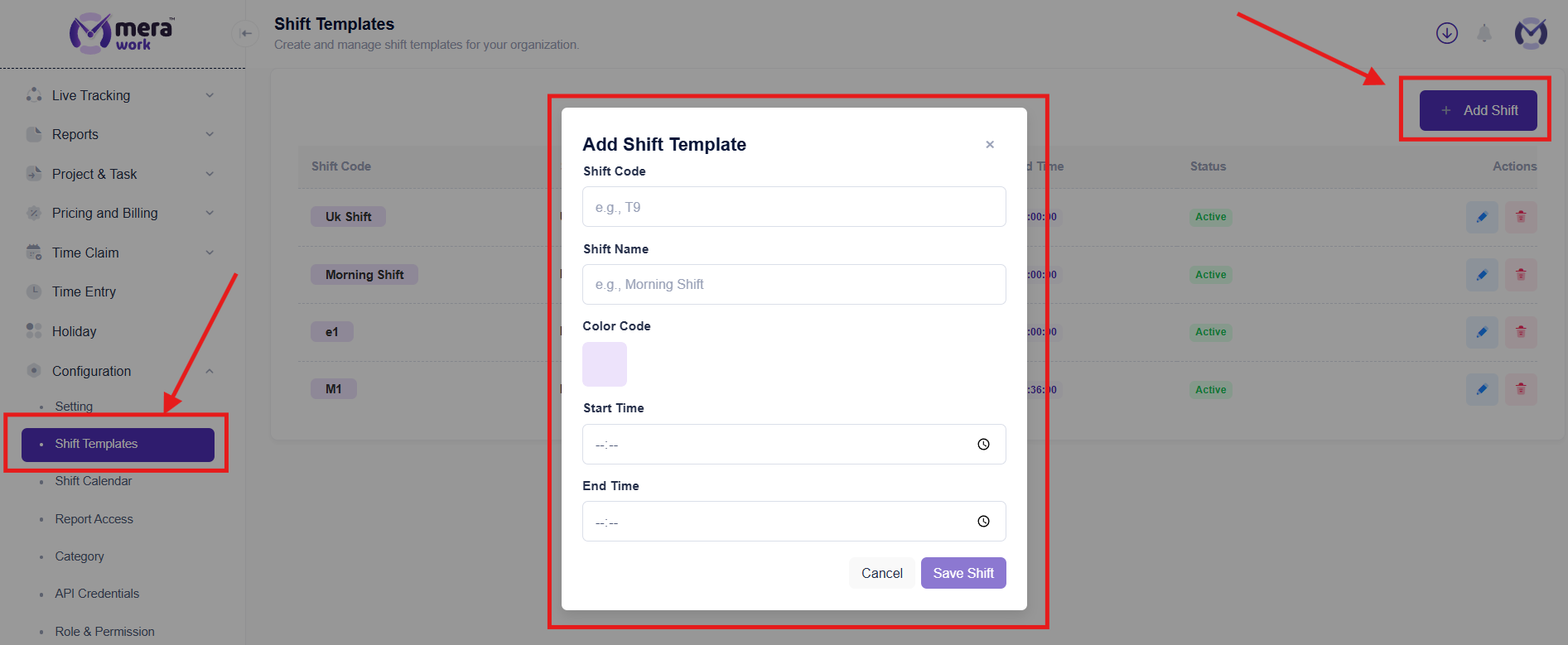
Shifts start as templates. A Default Shift from 08:00 to 17:00 is already listed.
- Go to Configuration and open Shift Templates.
- Select Add Shift.
- Enter the Shift Code and the Shift Name, choose a Color Code, and set the Start Time and End Time.
- Select Save Shift.
The list shows the Shift Code, Name, Start, End and Status for all your templates. You can edit or delete a template from its row.
How do I assign a shift to a person?
The shift must already exist as a shift template.
- Go to My Team and find the person.
- Open the Edit (pencil) icon and go to the Configuration tab.
- Under Shift Assignment, select Assign Shift and choose the shift.
- Save your changes.
What is the Shift Calendar?
The Shift Calendar, under Configuration, shows shift assignments by week and has two tabs, Fixed and Roster. Use the Assign button to choose users and a shift.
A Fixed shift repeats the same shift weekly until you change it, so it suits a recurring weekly schedule. A Roster shift is for chosen dates: you select users, choose a shift and set a date range.
Can a person have different shifts on different days?
Yes. Assign a Roster shift for the dates you need. A roster shift overrides the fixed shift for those dates only, and the fixed shift applies again afterwards.
Can I assign shifts to a whole department?
No. Shifts are assigned to people, either from their Configuration tab or from the Shift Calendar, where you can select several users at the same time.
How do I change a person's shift?
Open the person's Configuration tab under My Team and use Assign Shift to choose a different shift template. If the shift you need does not exist yet, create it in Shift Templates first.
How do I review shift time and activity?
Open Reports and choose Shift Tracker. The page is titled Shift Report and shows shift time and activity details for employees. Pick a member and a date range.
Can Work Mode be used together with shifts?
Work Mode lets a person start and stop tracking manually and is meant mainly for personal systems. If shift based monitoring conflicts with Work Mode, turn shift based monitoring off for the people who need Work Mode.
Add holidays
How do I add holidays?
Holidays are kept in a Holiday Calendar, shown by year. Holidays you add are used in attendance and work hour reporting, and the Attendance report has a Holidays column.
- Open Holiday in the sidebar.
- Choose the year.
- Select Add Holiday and enter the holiday details.
- Save the holiday.
Who can add or edit holidays?
Access to the Holiday page is controlled by role. In Role & Permission, the Holiday permission has View and Manage. Give Manage to the people who should add or change holidays.
How do holidays show for a person?
In the Individual dashboard view, the monthly attendance calendar marks days as Present, Absent or Holiday.
Handle breaks and time away
How can people pause monitoring for a short break without it counting as normal idle time?
Use Stop Timer. It lets an interactive user pause monitoring for 5, 15, 30 minutes or 1 hour, when an admin has enabled it. No tracking data is sent during the pause, and tracking resumes automatically when the timer ends.
An admin switches this on for a person with the Stop Timer Enable setting, under My Team, Configuration, or for many people through Bulk Configuration Update.
What if work was done but not recorded?
A person can request the missed time through Time Claim, and a manager or approver reviews it. This is covered in the time and activity topic.
Did not find your answer?
Search the whole Help centre, or ask our support team. We answer Monday to Friday, 08:00 to 22:00 IST.