Time and activity tracking
How Mera Work starts and stops tracking, measures active, idle, away and offline time, and handles claims and time zones.
Start, pause and stop tracking
How does tracking start?
Tracking runs through the desktop app once it is installed and the member is set up. In Interactive Mode the member signs in with the email address and password they created when they activated the account, and tracking starts according to your settings. In Stealth Mode the app runs in the background after the member signs in once with their registered email address.
- A Stealth member signs in once with their registered email address in the app prompt.
- If Work Mode is on for a member, tracking starts only when the member starts Work Mode.
How do Interactive Mode and Stealth Mode affect tracking?
The mode changes what the member sees, not what is measured. In Interactive Mode the app is visible and the Mera Work icon shows in the system tray, so employees can see when tracking is active. In Stealth Mode tracking runs quietly in the background without an on screen indicator.
In both modes, tracking follows the settings you set for the member, and the app needs a connection to the Mera Work server to send data. Your organisation's policy and the laws that apply to you decide how you use these modes.
What is Work Mode?
Work Mode lets a member start and stop tracking themselves. It suits personal computers and people who should be tracked only during work, because personal or confidential activity is not tracked while Work Mode is off.
- Open My Team and select the pencil icon on the member.
- Go to the Configuration tab.
- Turn on Work Mode and save.
- To update many members, use Bulk Configuration Update and choose Work Mode.
If shift based monitoring conflicts with Work Mode, Work Mode is not available for members who have fixed shifts assigned.
How can a member pause tracking for a break?
When Stop Timer Enable is on for a member, they can pause tracking for a chosen period, such as 5, 15, 30 or 60 minutes. No tracking data is sent during the pause, and tracking resumes by itself when the timer ends. Scheduled breaks are handled through Stop Timer rather than counted as normal idle time.
How do I turn tracking on or off for members?
For a member, open the pencil icon in My Team and use the Configuration tab. For a group, tick them in My Team, open Bulk Action and choose Enable Tracking or Disable Tracking. The Monitoring switch in User Default Settings sets the starting value for new members.
Do admins get alerts when someone starts or stops tracking?
Yes, if you switch on Start Stop Mail Alert in General Settings. It notifies Admins or Managers when a member starts or stops tracking. General Settings also holds Idle Time Mail Alert and Suspicious Keyboard Mail Alert.
Understand active, idle, away and offline time
What is active time?
Active time is the period when Mera Work detects keyboard or mouse activity on the computer. Productive, Unproductive and Neutral time are parts of active time, sorted by how you have classified the apps and websites used.
What is idle time, and how is it calculated?
Idle time is recorded when the app is running and the member is signed in, but there has been no keyboard or mouse activity for the idle time interval. For example, with an interval of 10 minutes, a member who stops using the computer for 10 minutes is recorded as idle for that period.
- Scrolling alone is not counted as keyboard or mouse activity, so a member who only scrolls can show as idle.
- Reading or watching a video without touching the keyboard or mouse can also show as idle.
What is away time?
Away time covers periods when the computer is locked, asleep or on a screensaver, or when no activity is visible on the display during working hours. It does not mean the member was not working. For example, a restart or shutdown also shows as away time.
What is offline time?
Offline time covers periods without a connection or without normal tracked activity. The Activity Log report shows Offline, Active, Away and Idle on a 24 hour timeline for a day.
What do Total Hours, Start Time and Last Active Time mean?
Total Hours combines the tracked states, such as active, idle and away time. Start Time is the first activity of the day, and Last Active Time is the latest activity that day.
What do Active Signal and No Signal mean?
Active Signal means a member's app is communicating with the server and sending data. No Signal means the app is not currently communicating with the server. No Signal does not always mean the app was uninstalled or the member stopped working.
What is the idle time interval, and how do I change it?
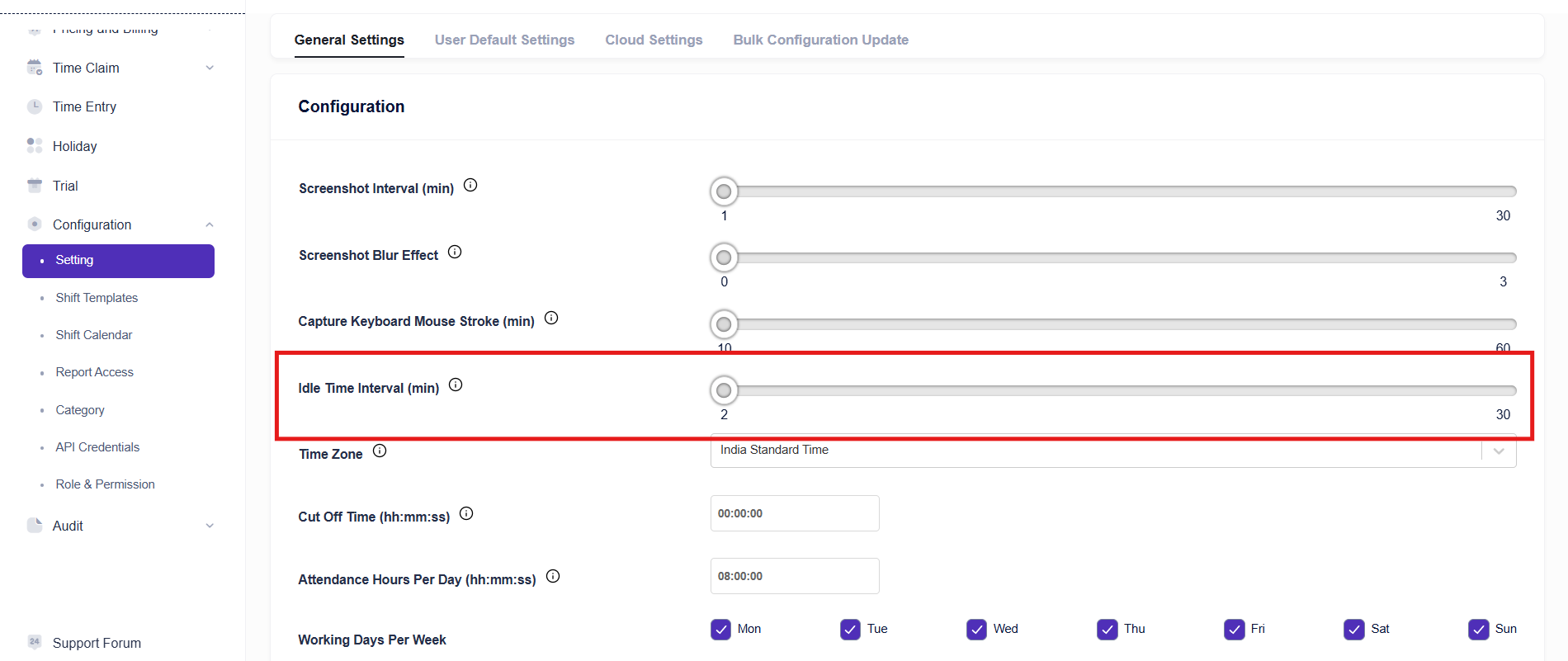
The idle time interval is how long a member can go without keyboard or mouse activity before Mera Work records idle time. You can set it from 2 to 30 minutes, and the starting value is 5. A lower interval marks members as idle sooner.
- For the organisation, go to Configuration, open Setting and choose General Settings, then set Idle Time Interval.
- For a member, open the pencil icon in My Team, go to Configuration and choose Custom for Idle Time Interval.
- For many members, use Bulk Configuration Update.
- Save your changes.
Does Mera Work record what people type?
No. Mera Work counts keyboard and mouse activity to tell whether someone is working or idle. It does not record the keys, text or passwords a member types. General Settings includes a Capture Keyboard Mouse Stroke setting, which you can set from 10 to 60 minutes.
Which computer is tracked when a member has several?
Activity is tracked on the computer where the member is currently signed in. A member who works from several computers signs out of a computer and into another when Allow Logout is on. If a member uses several displays on the same computer, screenshots are captured from the primary display and one extended display.
Work offline and sync your data
Does tracking continue when the internet goes down?
Yes. Tracking and screenshots continue while a computer is offline. The app stores the data on the computer and uploads it when the connection returns.
How does data reach my reports?
Data moves from the member's computer to the Mera Work server in real time whenever the computer is connected. Reports and dashboards show the data that has reached the server. When a computer has been offline, its data appears after the upload finishes.
- A dashboard and a report can show different figures if their date range, members, department, time zone or filters differ. Set both the same before you compare them.
Claim time and add missed time
What is Time Claim?
Time Claim is how a member asks for work time that was not recorded, such as legitimate work away from the computer. A manager or authorised approver reviews the claim, and approved time is added. It is a controlled, approval based way to correct a day.
- Time Claim has three pages in the sidebar: Claim, Request and Status.
- Role permissions for Time Claim are Claim and Status, so you can decide who uses it.
How do I make a time claim?
Open Time Claim and choose Claim.
- Pick the member and the date.
- Review the day's First Activity, Last Activity, Active Time, Productive and Idle Time.
- In the list of the day's time entries, find the period you want to claim. The list shows Start, End, Duration, Activity Status, Request Status and Reason.
- Select the period, enter the reason and submit the claim.
Can I claim idle, away or offline time?
The Claim page lists the time entries of the day with their Activity Status, so you can see how Mera Work recorded the period before you claim it. Claim periods that were genuine work and were not recorded as active. Your approver decides on the claim, so give a clear reason.
How do I approve or reject time claims?
Open Time Claim and choose Request. You can switch between Organization and Individual views. The list shows Name, Claim Date, Time Zone, Start, End, Reason and Submitted Date. Select the claims and choose Approve or Reject. You can decide on several claims together.
How do I see the result of a claim?
Open Time Claim and choose Status. It shows the Name, Date, Time Zone, Start, End, Reason, who approved or rejected the claim, and the Status.
Can I add time by hand?
Use Time Claim to add missed work time. It keeps an approval step, so your records stay controlled. Time Entry in the sidebar is a separate page for managing and viewing time entries, and custom roles can allow View and Manage on it. The Daily Time Entries report lists entries by project and task.
Time zone and cut off time
These settings decide which day and time your data appears under.
Why does the time zone matter, and how do I set it?
The organisation time zone is the default time reference for reports, attendance and activity tracking. If it does not match the member's computer, data and screenshots can appear under the wrong date or time.
- Go to Configuration, open Setting and choose General Settings.
- Select the Time Zone and save.
- For a member, open the pencil icon in My Team, go to Configuration, choose Custom for Time Zone and pick the time zone.
- For many members, use Bulk Configuration Update.
Also check that the date, time and time zone on the member's computer are correct.
What is cut off time?
Cut off time marks where a working day ends and the next begins. Activity after the cut off is counted toward the next day. It decides which day time, screenshots, activity and attendance fall under in your reports.
How do I set the cut off time, including for night shifts?
Go to Configuration, open Setting, choose General Settings and set Cut Off Time. For a member, open the pencil icon in My Team, go to Configuration and choose Custom for Cut Off Time. You can also set it in bulk.
- For night shifts, use a cut off after midnight so the whole shift counts as the same day. For example, if a shift ends at 2:00 AM, set the cut off to around 3:00 AM.

Did not find your answer?
Search the whole Help centre, or ask our support team. We answer Monday to Friday, 08:00 to 22:00 IST.