Your team, wherever you are
The Mera Work mobile app puts live productivity, time and attendance for your team on your phone. No laptop needed to know how the day is going.


On Android and iPhone. Sign in with the same login you use on the web.
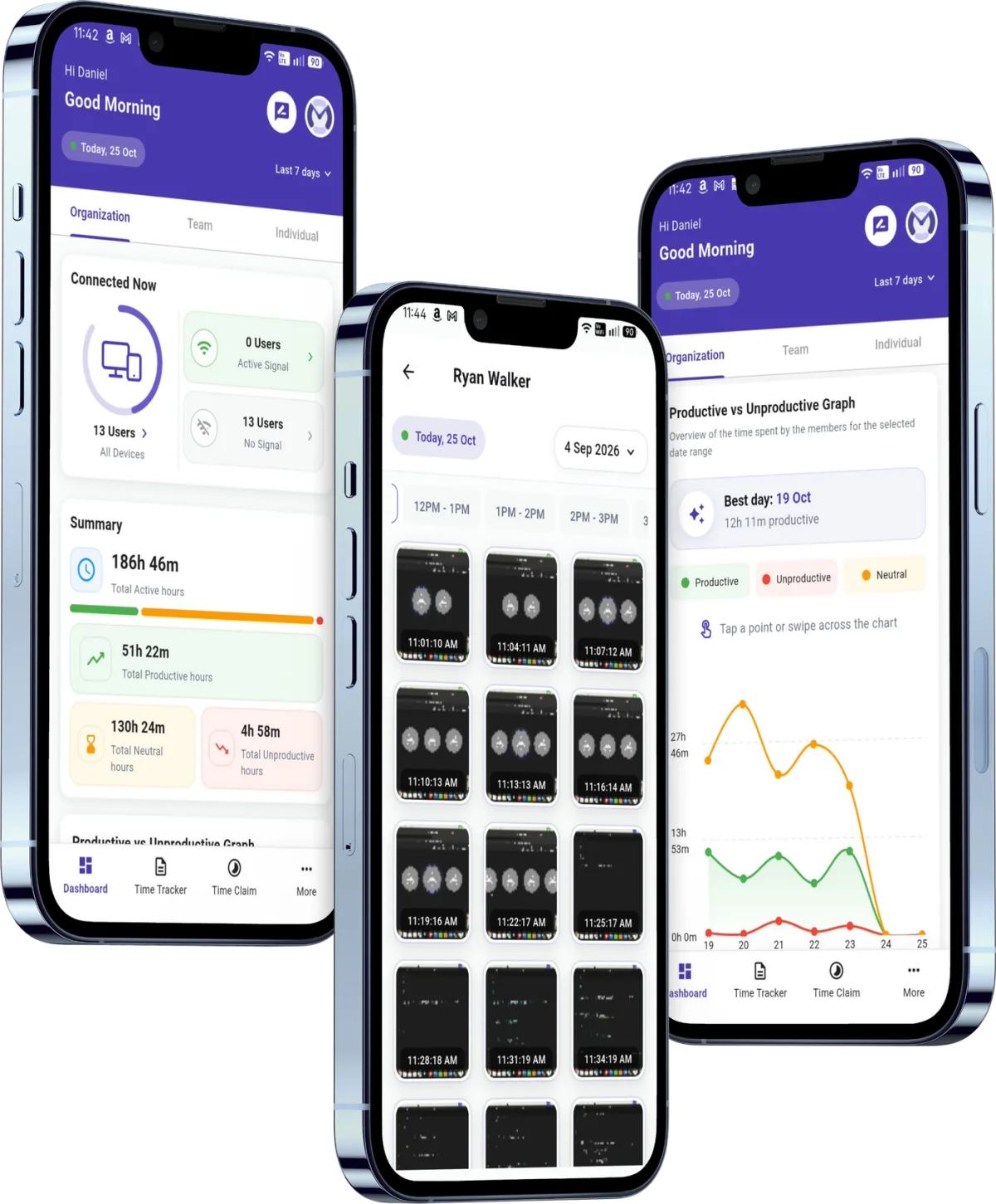
What you can do from your phone
Each card below is a real piece of the app.
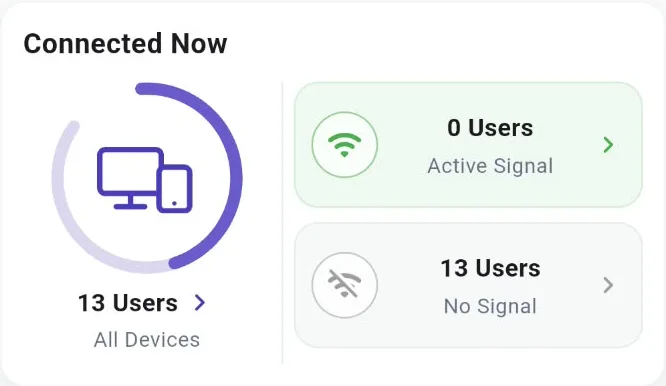
See who is working
A live signal for every device, from anywhere.
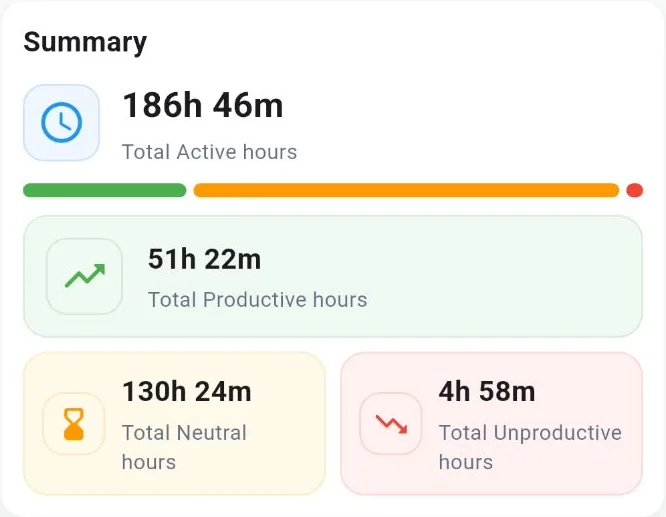
Know where hours go
Productive and unproductive time, at a glance.
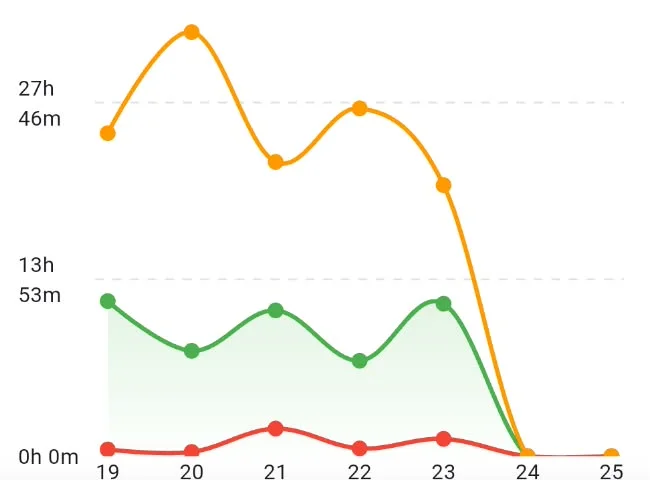
See the trend
Productive and unproductive hours, day by day.
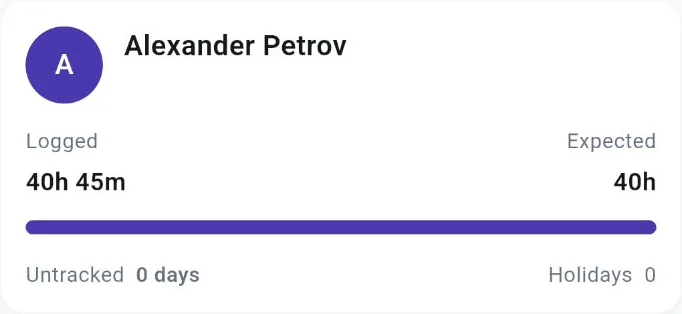
Check attendance
Logged hours against expected hours, per person.
A manager's day, with Mera Work in the pocket
-
8:30 am
On the commute
Has my team started work?
Open the Dashboard and see who is connected.
-
11:00 am
Between meetings
Where is today's time going?
Open Time Tracker for the breakdown of the day.
-
3:00 pm
Remote check in
What is the team working on?
Open Screenshots and jump to the hour.
-
Month end
HR review
Who is short on hours?
Open Attendance for logged against expected hours.
The app, screen by screen
The reports you know from the web app, laid out for a phone.
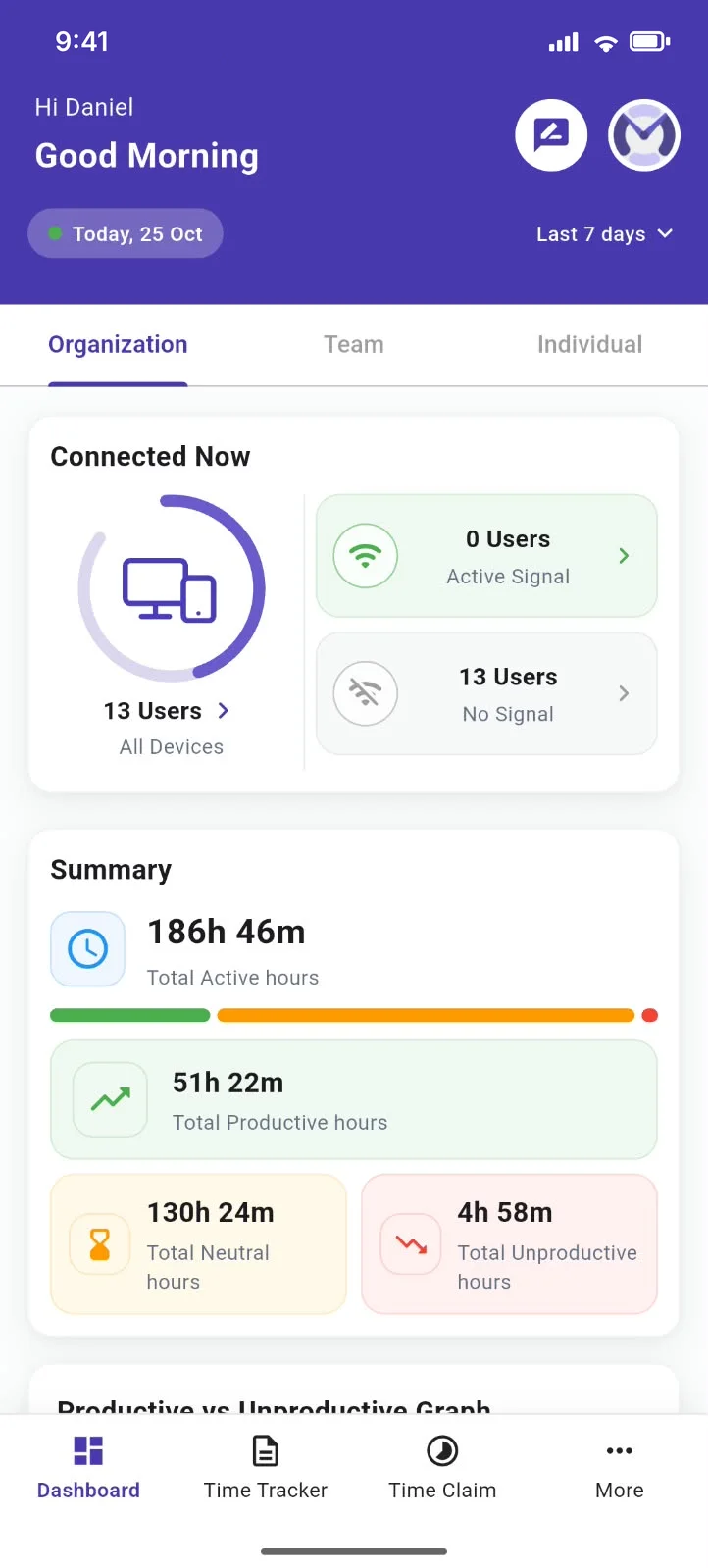
Dashboard
The whole company at a glance
The first screen you see. Live device signal and the week's hours, for the company, a team or one person.
- Switch between organisation, team and individual views
- Connected now: active signal against no signal, live
- Total active hours, with the productive share as a bar
- Hours split into productive, neutral and unproductive
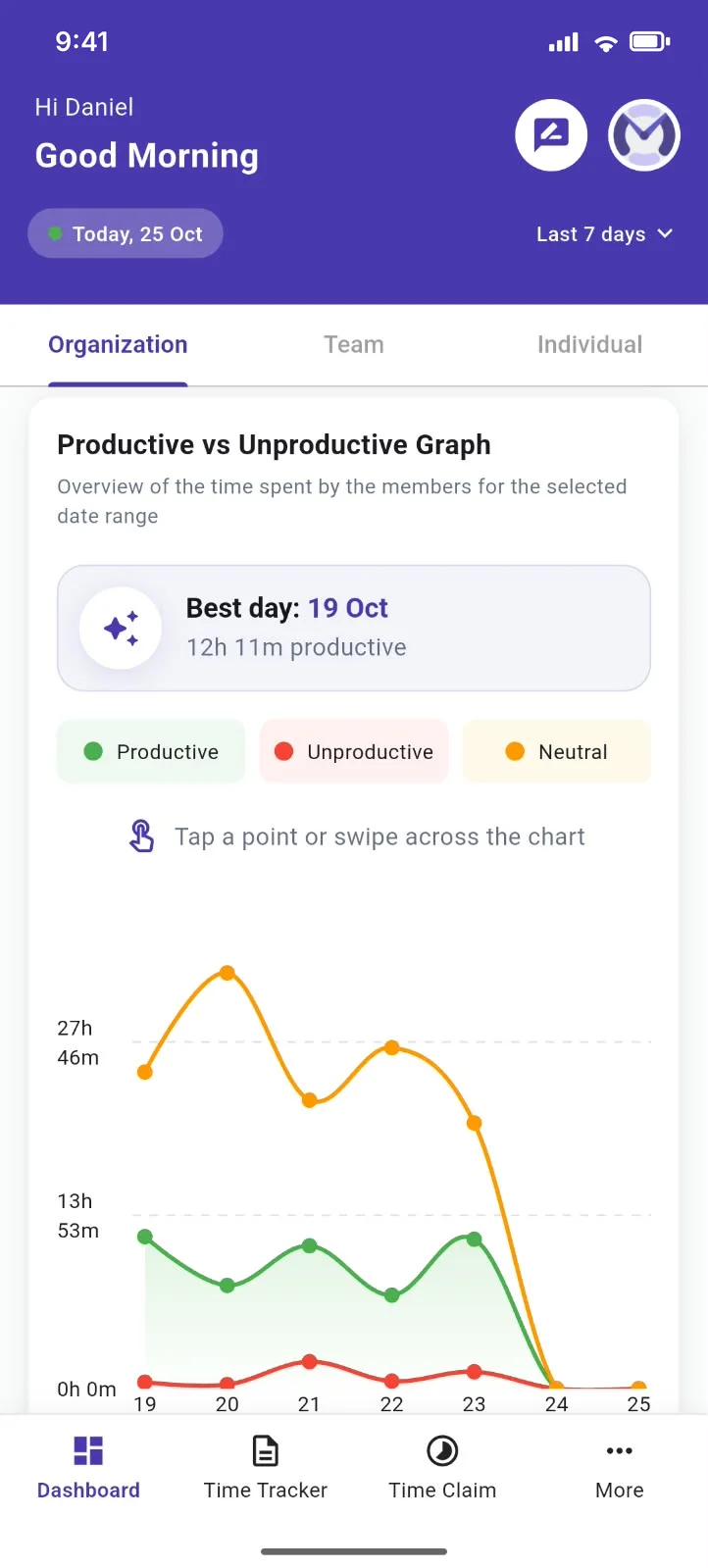
Trends
See how the week went
Further down the dashboard, the week is drawn day by day.
- The most productive day, named at the top
- A day by day graph of productive, unproductive and neutral hours. Tap any point.
- An attendance chart of present and absent for each day of the week
Time Tracker
Each person's day, broken down
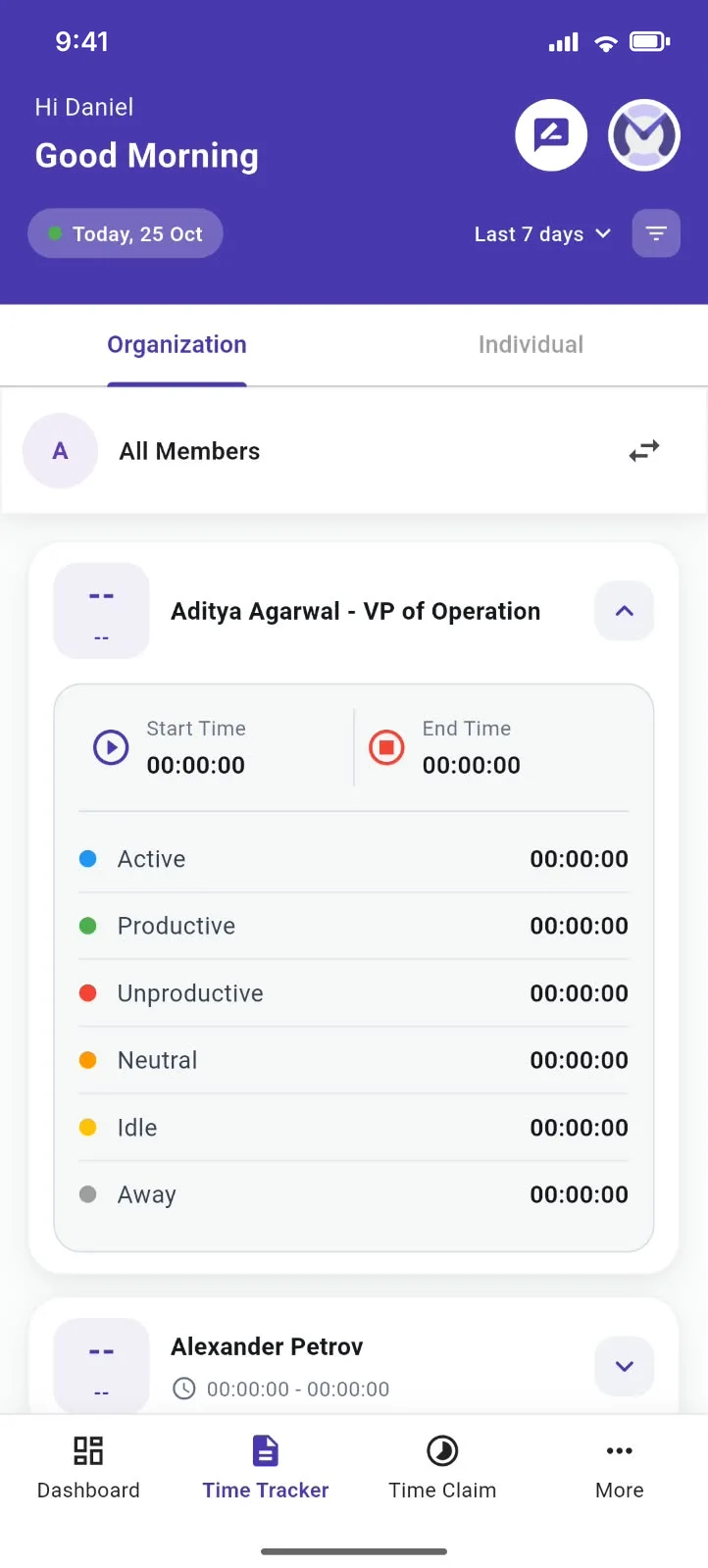
Start and end time with a breakdown of the day, for the whole organisation or a single member.
- Narrow the range and filters to the days you need
- Switch from all members to one person
- See when the workday began and ended
- Time split into active, productive, unproductive, neutral, idle and away
Time Claim
Fix missed time in a few taps
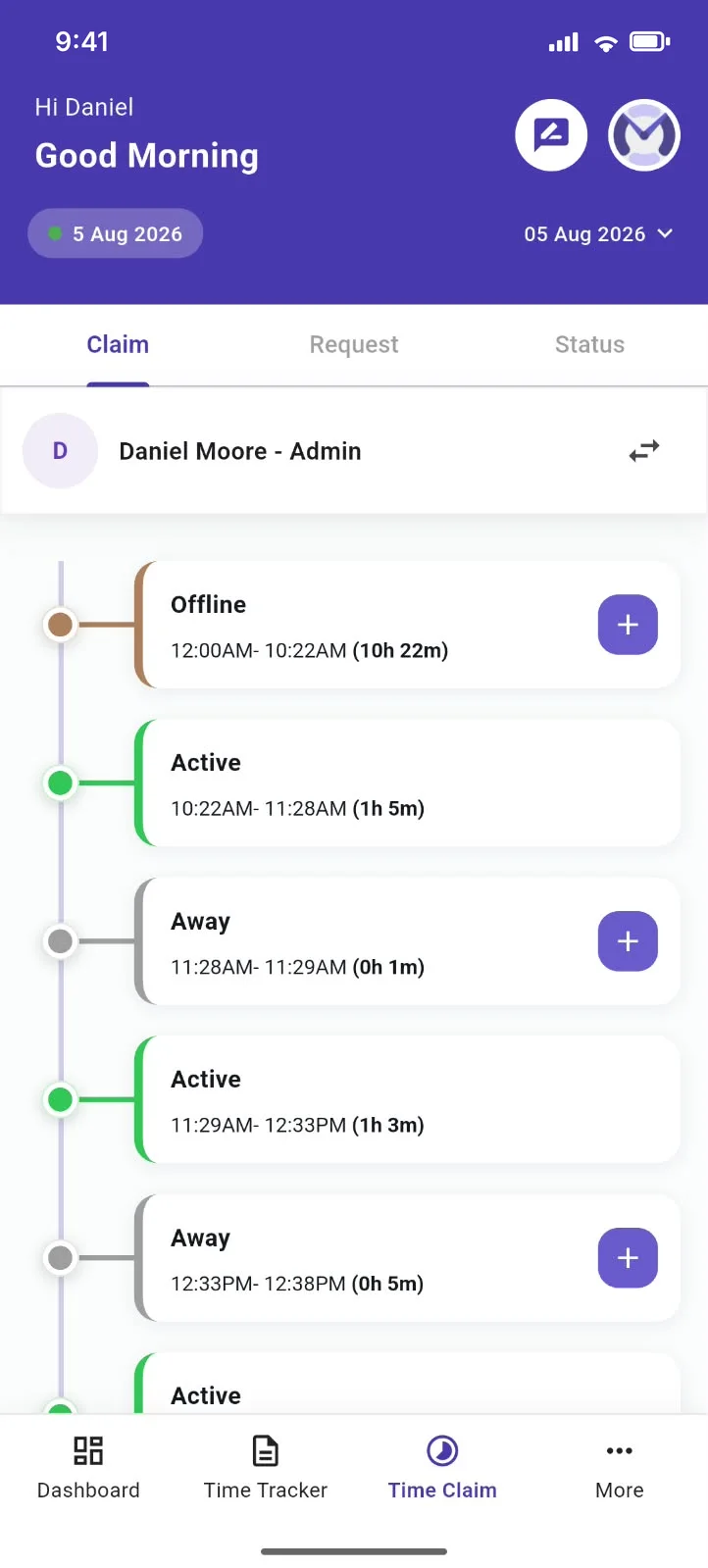
A team member claims the missed time from their phone, and a manager approves the request from theirs. Nobody waits for a laptop.
- The day as a timeline of Offline, Active and Away blocks
- Tap the plus on a gap, add a reason and send the request
- Follow it under Status: approved or rejected, with time and reason
Attendance
Logged hours against expected hours
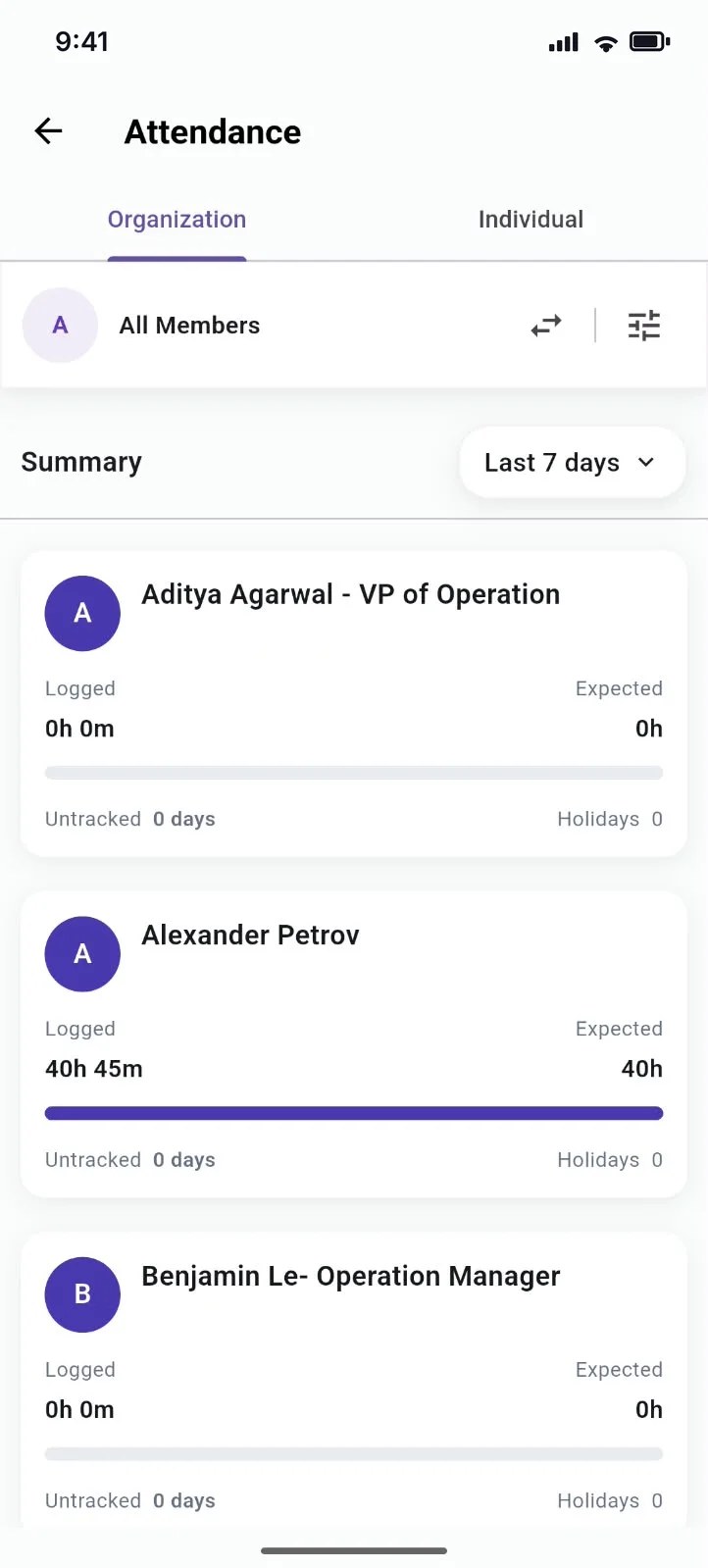
Each member's logged and expected hours, with untracked days and holidays. Built for HR and month end checks.
- View the whole organisation or one person, with filters
- Spot untracked days and holidays quickly
- A progress bar makes a shortfall plain
Screenshots and Live Stream
See what the team worked on
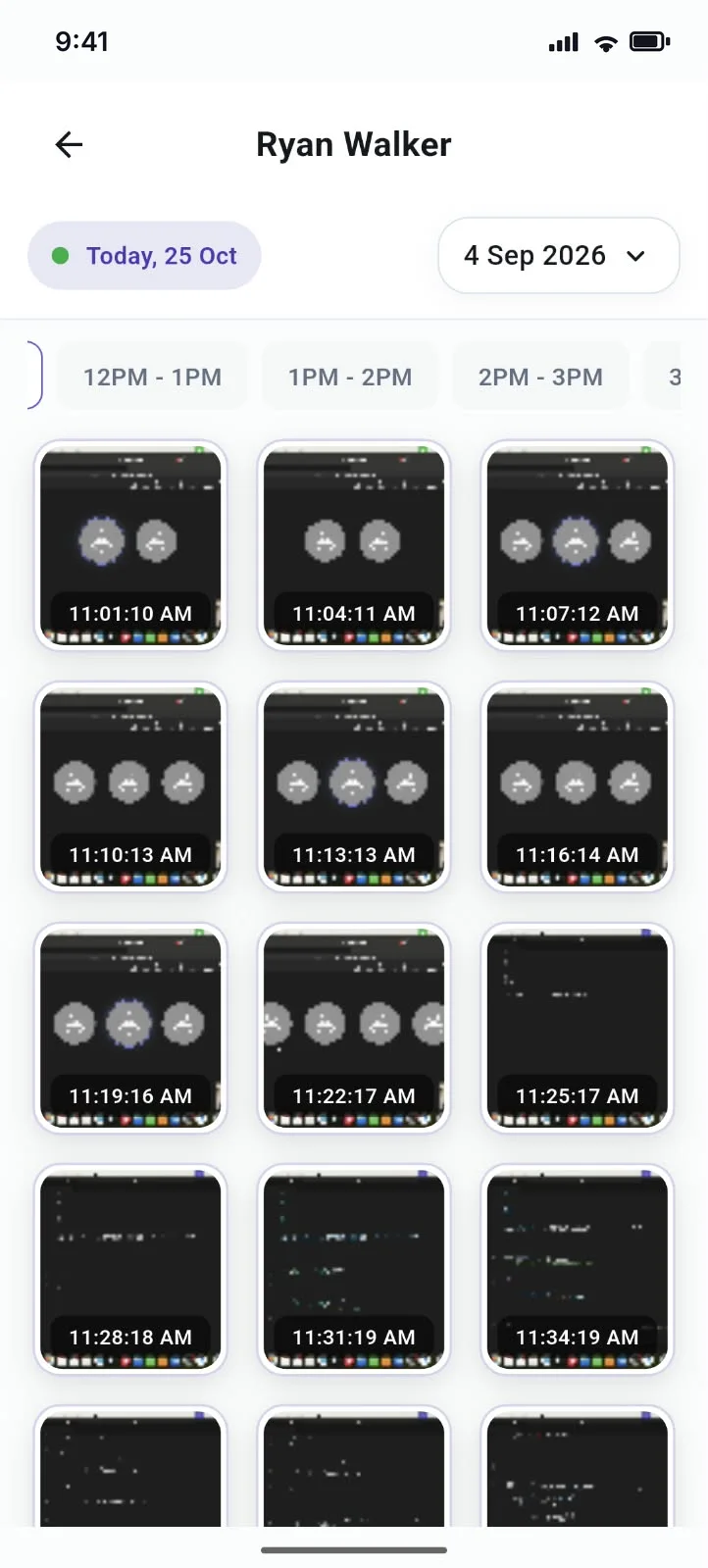
Screenshots come from the work computer, captured by the desktop app. The phone only displays them.
- Pick a member and choose any date
- Jump to any hour of the workday
- Timestamped screenshots. Tap one to open it.
- Live Stream lists who is online now and opens a member's live view
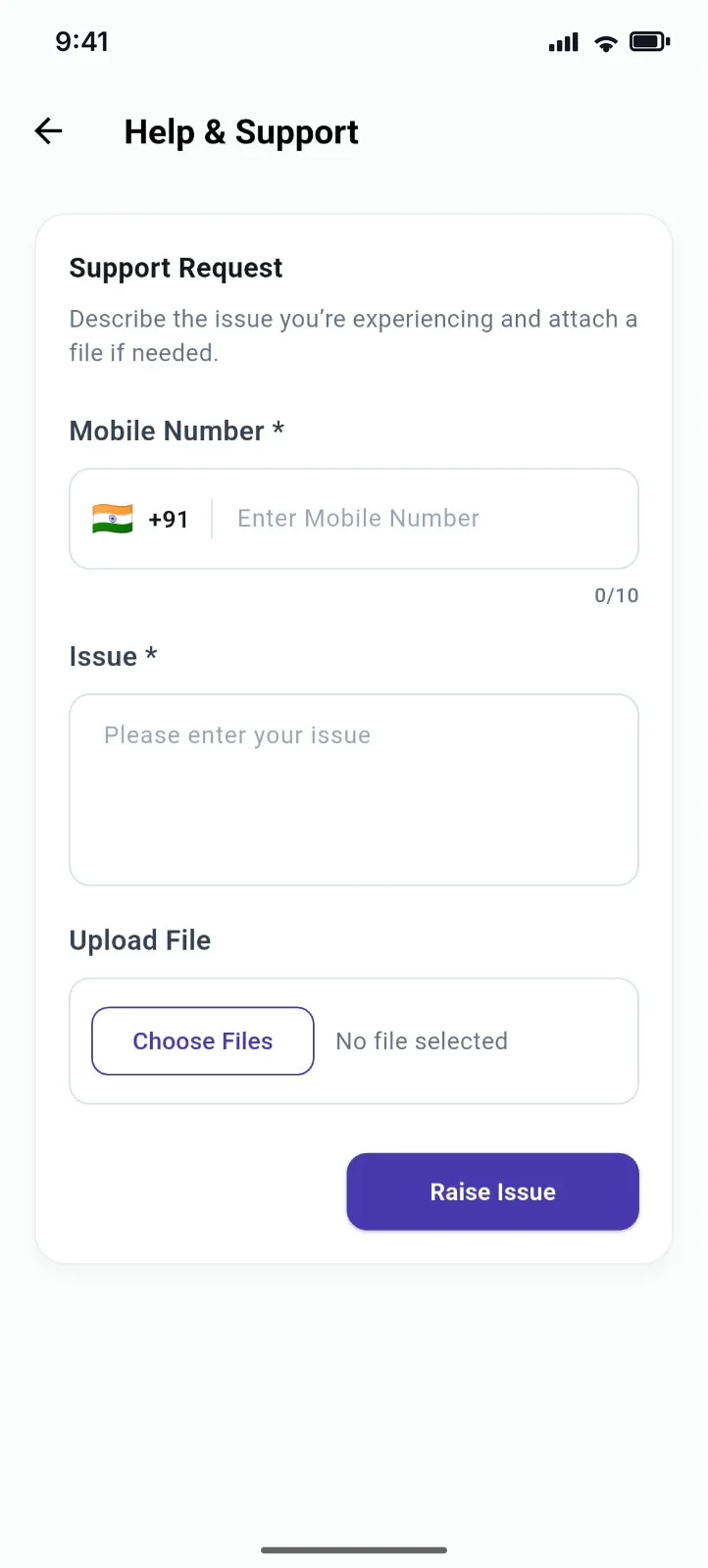
Help and Support
Get help without leaving the app
A short support form with file upload sends the issue straight to the Mera Work support team.
- Add a mobile number so support can call back
- Describe the issue in your own words
- Attach a file, such as a screenshot of the problem
Will this app track my phone?
No.
The app is view only. It shows the reports Mera Work already makes from the work computer. Nothing on the phone is recorded.
Get the app
Scan a code with your phone or tap a badge, then sign in with the same login you use on the web.
Google Play
For Android phones.

App Store
For iPhone, on iOS 15.6 or later.
Looking for the desktop app your team installs on their computers? Download the desktop app.
New to Mera Work?
Start free with your team on the web, then follow the numbers from your phone.