Installing the Mera Work app
This topic covers installing, rolling out, updating and removing the Mera Work desktop app on Windows, Mac and Linux.
Check what you need before you install
Which computers can run Mera Work?
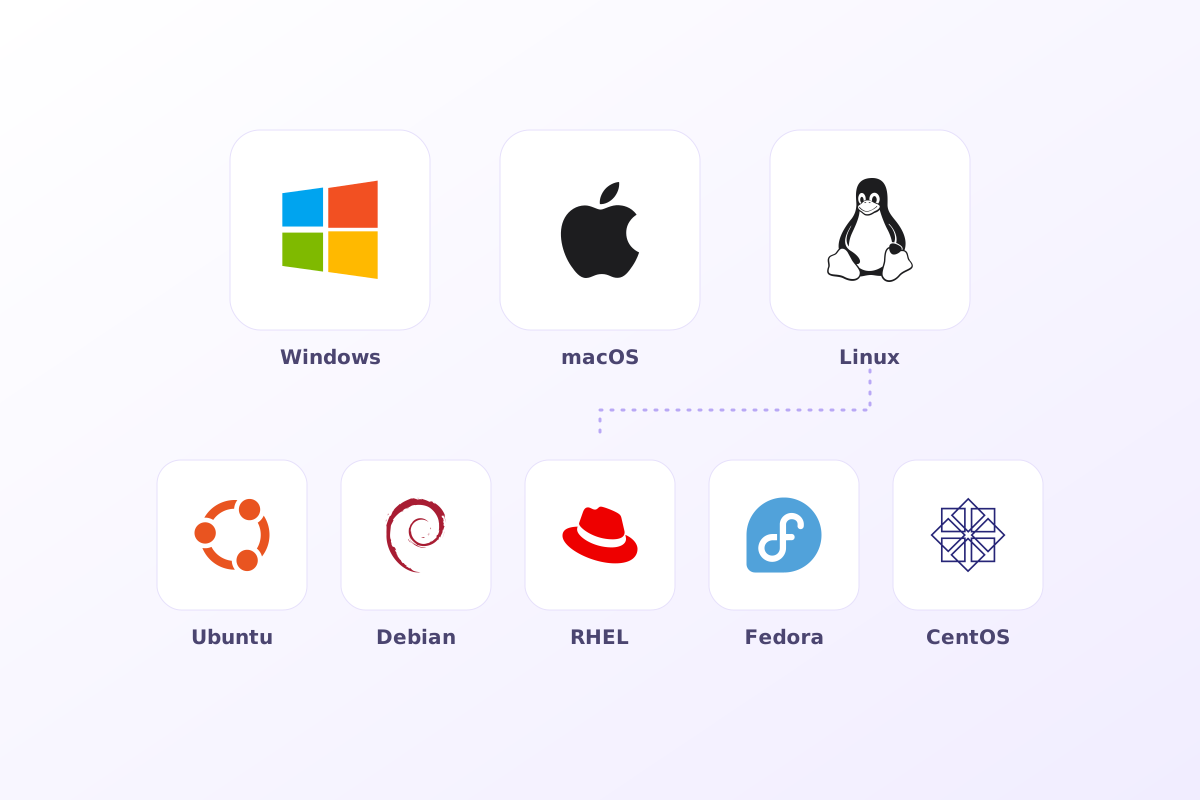
Mera Work runs on any computer that meets the needs of a supported operating system. Each computer needs at least 2 GB RAM and 250 MB disk space. Windows, Mac and Linux computers can be used together in your organisation.
- Windows: Windows 11 and later
- Mac: macOS 11 and later
- Linux: Ubuntu, Debian, RHEL, Fedora and CentOS
Do I need administrator rights to install the app?
Yes. You need administrator rights on the computer to install and to uninstall Mera Work. If you manage many computers, your IT team can install it through their deployment tools.
Does Mera Work work with a VPN, proxy or virtual desktop?
Yes. A VPN, a proxy or a virtual desktop does not affect how Mera Work behaves.
Some companies inspect secure traffic (SSL inspection). That can break the connection between the app and Mera Work. If your company does this, ask your IT team to allow these addresses, which the app uses to send data and to upload screenshots and logs.
- https://api.merawork.com/api/v1
- https://meraworkblobstorage.blob.core.windows.net/
Where do I download the desktop app?
Use the download page on the Mera Work website. You can also open Download Mera Work in the top bar of the admin dashboard. It lists the Desktop Tracker for Windows, Mac and Linux, with an Interactive Mode and a Stealth Mode option.
Is there a mobile app, and does it track phones?
Mera Work has a mobile app for iOS and Android. It lets administrators, managers and interactive users review productivity reports. It does not track your phone, and Mera Work does not monitor employees' phones or tablets.
You can get the app from the App Store or Google Play, or scan the QR codes in Download Mera Work in the dashboard top bar.
Choose interactive or stealth mode
What is the difference between interactive and stealth mode?
In interactive mode, employees can see when tracking is active. The person signs in to the app with their email address and password.
In stealth mode, tracking runs quietly in the background without an on screen indicator.
Stealth mode is subject to legal requirements where you operate. No permission or acceptance is captured from the employee at install on Windows or Linux. Check your local law and your own policy before you use it.
How do I set which mode a person uses?
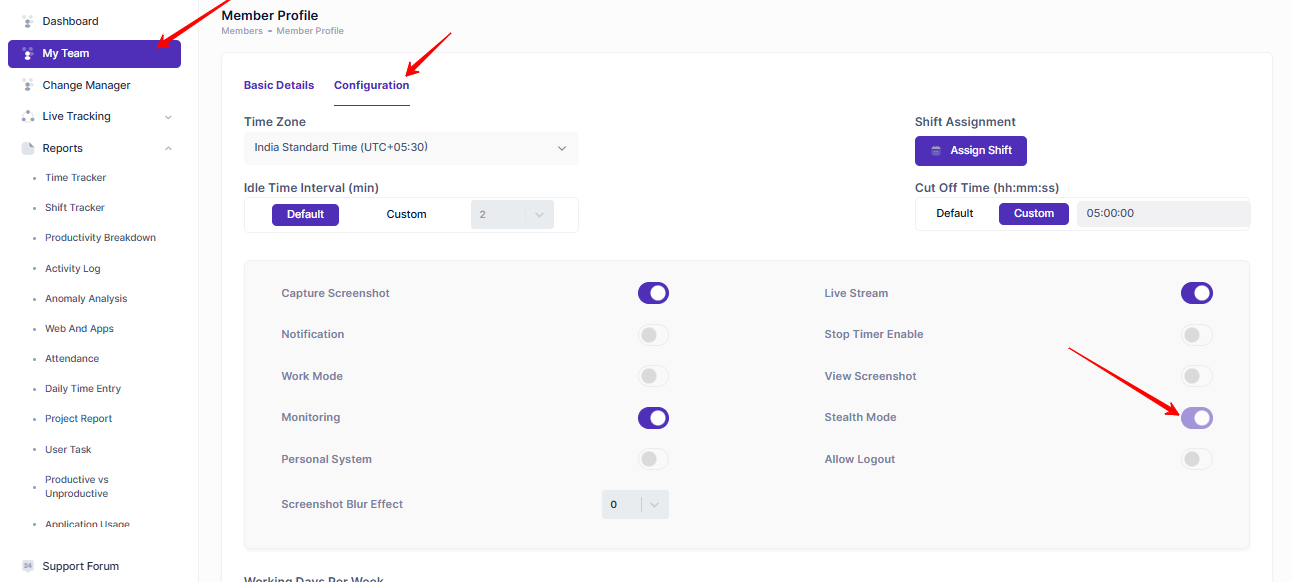
The mode is a setting on the person, called Stealth Mode. When it is off, the person is an interactive user. When it is on, the person is a stealth user.
- For people you are about to add, open Configuration, then Setting, then User Default Settings. Switch Stealth Mode on or off and select Save. The setting applies to people added afterwards.
- For a person already in the team, open My Team, select the pencil icon next to their name and open the Configuration tab.
- Switch Stealth Mode on or off for that person and save.
Does the installer have to match the person's mode?
Yes. Interactive and stealth are separate builds. If the installed build does not match the mode set for the person, the app cannot sign in or work as expected.
Check the person's mode in My Team before you install or deploy, then choose the matching installer on the download page.
How does a person connect the app in stealth mode?
It depends on the stealth build you install.
- Windows, email login: the person enters their registered email address to connect the computer.
- Windows, profile auto login: the app connects automatically using the current Windows user profile.
- Mac: after install, the person enters their registered email address in the pop up and signs in once.
Install the app on a computer
How do I install Mera Work on Windows?
The installer for interactive mode needs the person to sign in. The full steps are on the installation guides page.
- Download the Windows installer (.exe) from the download page.
- Double click the file and let the setup finish.
- Sign in with the email address and password created when the account was activated, then select Login.
- Mera Work starts straight away. You can minimise it, and it stays in the hidden icons area of the taskbar.
How do I install Mera Work on a Mac?
- Download the disk image (.dmg) from the download page.
- Double click the file and drag the Mera Work app into the Applications folder.
- When macOS asks, allow Mera Work under Accessibility.
- Allow Screen and System Audio Recording.
- The first time you use a browser, Mera Work asks for permission to read the addresses of the websites you visit. Allow it.
- Open Mera Work and sign in with your work email. Tracking starts once the permissions are set.
macOS needs the Accessibility and Screen and System Audio Recording permissions for both interactive and stealth mode.
How do I turn on the Mac permissions if I missed the prompts?
You can switch the permissions on in System Settings at any time. Screen and System Audio Recording is needed for screenshots and live streaming. After you change either permission, quit and reopen Mera Work so it takes effect.
- Open the Apple menu, then System Settings, then Privacy & Security.
- For screenshots and live streaming, select Screen and System Audio Recording, find Mera Work in the list and switch it on. Enter your Mac password or use Touch ID if asked.
- For app and website tracking, select Accessibility, find Mera Work and switch it on. If it is not listed, select the plus button, find the Mera Work app and select Open.
- Quit and reopen Mera Work.
How do I install Mera Work on Linux?
- Download the Debian package (.deb) for Ubuntu and Debian, or the RPM (.rpm) for RHEL, Fedora and CentOS, from the download page.
- Double click the file you downloaded and complete the installation.
- Launch the Mera Work desktop app and sign in with the email address and password created when the account was activated.
- After you sign in, the timer starts automatically in the Current Session section.
IT teams can install the same packages from the terminal with their usual package manager.
Roll the app out to many computers
Is there an MSI package for Windows?
Yes. Mera Work offers a Windows MSI package as well as the .exe installer, and it is the better fit for managed environments. MSI packages are on the download page for interactive and stealth builds.
For help with MSI packages and deployment requirements, contact support@mera.work.
Can I install and uninstall silently through Active Directory, Group Policy or Intune?
Yes. Mera Work supports silent installation and silent uninstallation through Active Directory, Group Policy (GPO) and Microsoft Intune, so you can deploy to many computers at once.
Before you deploy, make sure the right mode and user configuration are in place.
- Pick the build that matches the mode set for the people you are targeting. For Windows stealth, also pick the email login or the profile auto login variant.
- Add the people in My Team first, in bulk if the team is large.
- Allow the network addresses listed above if your company inspects secure traffic.
How should I plan a rollout for a large team?
Start with a smaller group, check that tracking works, then expand. Larger rollouts may need planning for hierarchy, SSO and Group Policy.
Mera Work's onboarding support and documentation are available if you want guidance.
Update, move or remove the app
How do I check which version of the app a person has, and update it?
My Team shows the app version for the people in your team, in the App Version column.
- Open My Team and check the App Version column for the person.
- Or download the latest installer from the download page and install it on the computer.
How do I uninstall Mera Work on Windows?
Administrator rights are needed to uninstall. Your IT team can uninstall silently through Active Directory, Group Policy or Intune.
- Sign in to Windows as a user with administrator rights.
- Open Installed Apps (Apps and Features) and find Mera Work.
- Choose to uninstall it and follow the prompts.
- Restart the computer.
How do I reinstall Mera Work?
Reinstalling keeps the person's account. Plan it so the right build goes back on the computer.
- Note whether the person is set to interactive or stealth mode in My Team.
- Confirm the email address of the person's account.
- Uninstall the existing app and restart the computer.
- Download the latest installer that matches the person's mode.
- Install it and sign in.
How do I move Mera Work to a new computer, or give a computer to someone else?
Install the app on the new computer and sign in with the person's account. An account can be active on a computer at a time, so a sign in on the new computer is blocked while the earlier session is still open.
To clear it, open My Team, find the person and select the Lock icon to unlock them. That ends the earlier session. If Allow Logout is on for the person, they can also sign out on the old computer themselves.
- To hand a computer to a new person, remove the previous member from My Team, then uninstall the app from the computer. The new person installs the app and signs in with their own account.
Can a person use Mera Work on several computers?
Yes. Mera Work supports multi device use, subject to your configuration and licensing. The person signs in on the computer they are using, and activity is tracked only on the computer where they are signed in.
To switch computers, the person signs out on the first computer and signs in on the second. This needs Allow Logout to be on for them.
How do I install Mera Work on personal devices?
The steps are the same as for company computers. To apply your personal device rules, switch on Personal System for the person, either in User Default Settings for new people or in the Configuration tab of their profile. The flag marks the device as personal.
Work Mode lets a person pause tracking for personal or confidential work, and your admin controls it.
Did not find your answer?
Search the whole Help centre, or ask our support team. We answer Monday to Friday, 08:00 to 22:00 IST.