Getting started with Mera Work
This topic covers creating your workspace, setting up tracking rules, adding your first people and what to expect on your first day.

Create your workspace and start the trial
How do I create a Mera Work workspace?
You sign up with your company details, verify your email and sign in to the admin dashboard at app.mera.work. The dashboard shows a Set Up Checklist that guides you through the first steps.
- Open the Mera Work website and choose the free trial option.
- Fill in the signup form with your company name, email address and password.
- Verify your email address.
- Sign in to the admin dashboard at app.mera.work.
- Follow the Set Up Checklist: set tracking rules, invite team members and install the desktop app.
How does the free trial work?
The free trial lasts 14 days and includes the full core feature set. You do not need a credit card to start.
If you need more time, you can ask Mera Work for an extension. Extensions depend on approval from Mera Work.
Can I try Mera Work with only part of my team?
Yes. Add a smaller group first and install the app on their computers only. You can add more people whenever you are ready.
You can also choose which monitoring features to switch on while you evaluate, using the settings described below.
Find your way around the admin dashboard
What do I see when I first open the dashboard?
The Dashboard opens with a Set Up Checklist that stays until you complete it. Until your team has activity, the dashboard can show sample data. Select Switch to live data to see your own figures.
- Account Created
- Set Tracking Rules
- Invite Team Members
- Waiting for first activity
- View your first productivity report
What do the Organization, Team and Individual views show?
Organization view covers your whole workspace. Team view covers a manager's team and has a member picker. Individual view shows the member you choose. All three views have a date range.
The cards show All Devices, Active Signal and No Signal, along with the total Active, Productive, Unproductive and Neutral hours. You also get a Productive vs Unproductive graph, the Top Productive and Less Productive members, the most used websites and applications, and attendance for the last 7 days.
What do Active Signal and No Signal mean?
Active Signal means the desktop app on a computer is connected and sending data to Mera Work. No Signal means the app is not communicating with the server at that moment.
No Signal does not mean the app has been removed. The computer may be off, asleep, locked or offline, or the app may not be running.
Set up tracking rules before you add people
Should I set tracking rules before I invite people?
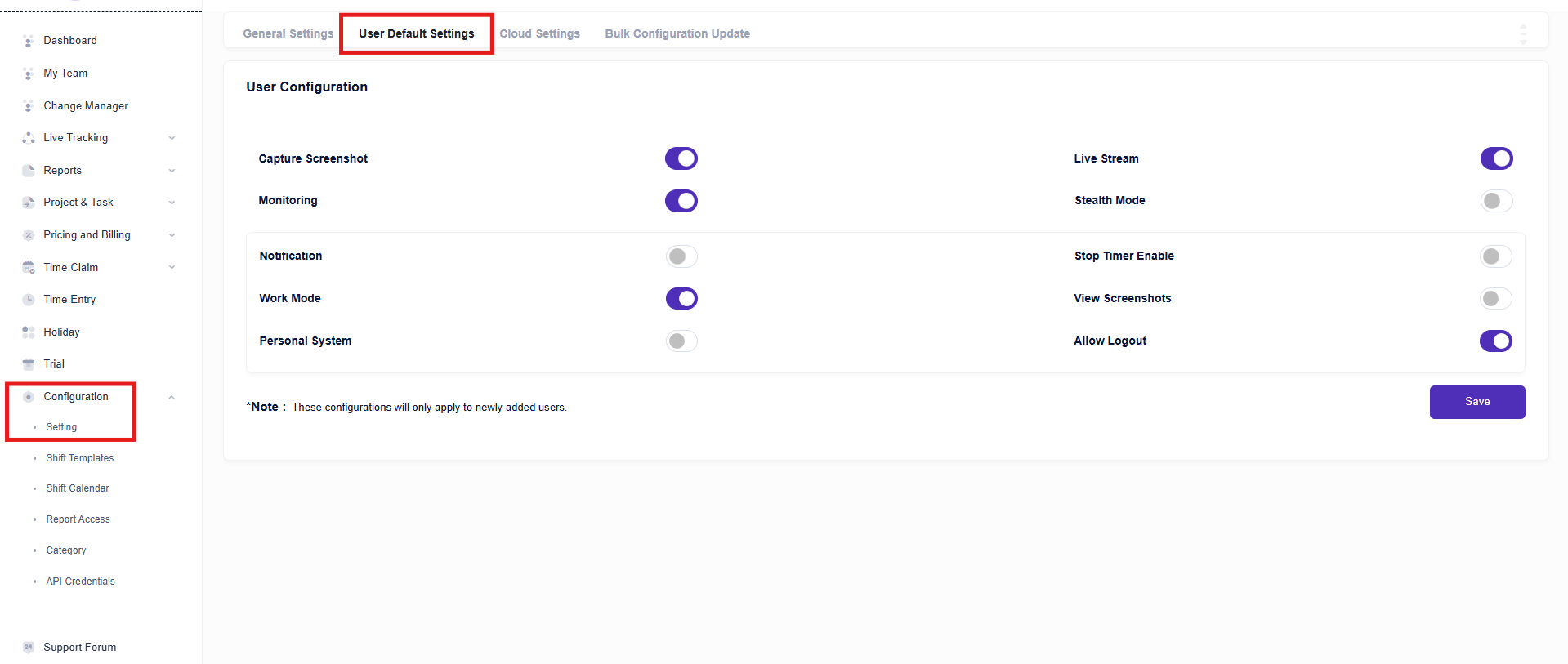
Yes, it saves work. User Default Settings decide which tracking switches are on for new people, and they apply only to people you add after you save them. People you added earlier keep their own settings, which you can change from their profile or in bulk.
- Open Configuration, then Setting.
- Select the User Default Settings tab.
- Switch on the options you want for new people.
- Select Save.
- Capture Screenshot
- Live Stream
- Monitoring
- Stealth Mode
- Notification
- Stop Timer Enable
- Work Mode
- View Screenshots
- Personal System
- Allow Logout
Stealth Mode decides which installer a person needs. Read the installing topic before you switch it on.
What do the General Settings control?
General Settings apply to your whole organisation. You find them under Configuration, then Setting.
- Screenshot Interval: 1 to 30 minutes, with a default of 5.
- Screenshot Blur Effect: levels 0 to 3.
- Capture Keyboard Mouse Stroke: how often keyboard and mouse activity is captured, 10 to 60 minutes.
- Idle Time Interval: 2 to 30 minutes, with a default of 5.
- Time Zone and Cut Off Time.
- Attendance Hours Per Day and Working Days Per Week.
- Mail alerts for Suspicious Keyboard, Start Stop and Idle Time.
Idle Time Interval, Cut Off Time, Time Zone, Working Days Per Week and Screenshot Blur Effect can also be set for a person from their profile, or for many people with Bulk Configuration Update.
Add your first people
How do I add a member?
You add members from My Team. Mera Work sends the new member an invitation email.
- Open My Team.
- Select Add Member.
- Enter the member's email address. Select Add more details if you want to fill in more fields, or Add New Member to add another person in the same go.
- Select Send Invite.
When all your licences are in use, Mera Work shows License Limit Exceeded and offers Purchase Licenses.

How do I add many people at once?
Use Bulk Upload. It is the quickest way to onboard a large team.
- Open My Team and select Add Member.
- Select Bulk Upload.
- Download the sample file, fill in your people's details and upload it.
- Check that the people and their details were created correctly.
What does a new person do after I invite them?
They activate their account from the invitation email, then install the desktop app and sign in.
- Open the activation link in the invitation email.
- Complete the account setup and create a password.
- Install the desktop app for their computer.
- Open the app and sign in with the email address and password they just created.
- Tracking starts according to the settings you chose.
How do I resend an invitation?
Open My Team, find the person and use the arrow icon to resend the activation or invitation email.
If it still does not arrive, ask the person to check their spam or junk folders and your company email security. Also confirm the email address on their profile is correct.
Sign in for the first time
How do I sign in to the admin dashboard?
Go to app.mera.work and sign in with your email address and password. The dashboard opens after you sign in.
I forgot my password. How do I reset it?
On the sign in page, select Forgot Password, enter the email address registered with Mera Work and follow the steps in the email. If you are already signed in, you can change your password from your profile at the top right.
If the email does not arrive, check your spam folder and your company email filtering, make sure you used the registered address, wait a few minutes and try again.
What happens after a person signs in to the desktop app?
The app starts a tracking session according to your organisation's settings. It collects the activity you have switched on, such as application and website use, active and idle time, keyboard and mouse activity and screenshots, and syncs it with the dashboard.
Keyboard and mouse tracking records the amount of activity only. It does not record keys, text or passwords.
If Work Mode is switched on for a person, tracking begins only after they start Work Mode themselves.
What to expect on your first day
How long does it take for data to show in the dashboard?
Data moves from the computer to Mera Work in real time, as long as the computer is connected to the internet. Activity appears in the dashboard and reports as it arrives.
If a computer is offline, the app keeps tracking and storing screenshots on the computer and uploads them when the connection returns. Reports for that time fill in after the upload.
Why are my reports empty on the first day?
Reports show data only after members sign in to the desktop app and start tracking. Until then the Set Up Checklist shows Waiting for first activity, and the dashboard can show sample data.
Once the first activity arrives, the checklist moves on to viewing your first productivity report.
What should I check on the first day?
A short check shows whether the people you invited are tracking.
- In My Team, look at the Activation and Tracking columns and the App Version for all your people.
- On the Dashboard, compare Active Signal and No Signal against the number of people who have signed in.
- Open the Reports menu and view your first report once activity has arrived.
- Adjust settings from Configuration if the defaults do not suit your team.
Did not find your answer?
Search the whole Help centre, or ask our support team. We answer Monday to Friday, 08:00 to 22:00 IST.